I decided to port the game I have been working on when I have free time to the web so that anyone can check it out. It’s a simple wild west duel game inspired by Quick Draw from the original Kirby’s Adventure on NES.
I decided to spend my Fourth of July weekend transforming a small Python utility I wrote a couple of years ago for work. The idea was simple: make the tool more accessible for co-workers who use it by turning it into a web application.
The premise of the tool is extremely simple. It automates the sending of multiple cURL requests to a WordPress site’s xmlrpc.php file with some extra QOL features.
The purpose of automating the sending of multiple requests is that a single cURL request may succeed, but the WordPress mobile app and Jetpack do not make single requests – they make many requests and need to be in constant communication with that file. A single request might succeed, but many can fail due to rate limiting, bandwidth or other hosting limitations. It is impossible to fully diagnose a possible XML-RPC issue without performing a test like this.
The utility works just fine, but I thought converting it to a web app would make it easier for folks to use. My first thought was to simply write a PHP script to make the POST request then return the results to the client. It probably would have taken all of 30 minutes but I thought “nah that’s too much work for a simple app….” So I thought I’ll just port the Python script into a web app using a Python web framework. Django is far too much for something like this, so I started looking at Flask. Even Flask seemed a bit overkill for a one-file project; thankfully there’s Bottle which is a “micro-framework” similar to Flask.
I decided to spin up a Bottle app which is ridiculously easy and had a working version of the script running on a web page in about an hour.
It worked just fine, but I wasn’t sure I liked the idea that the user would have to wait during the request for the script to complete all n number of requests before the results page loaded. I also thought that JavaScript might be a better solution in general: I could just make the requests via JavaScript and append the results to the DOM as they came in. I wouldn’t even need a server component. It would be so simple…
The first thing I did was re-write the request using JavaScript’s Fetch API. This took a little while because I needed to refresh on Async Functions and Promises. I feel like every time I look at JavaScript it’s different 😭. After translating the request to a JavaScript acceptable request:
let mySite = document.getElementById('siteURL');

    let myRequest = await fetch(mySite, {
        headers: {
            "Content-Type": "text/xml",
            "User-Agent": "Jetpack by WordPress.com",
        },
        body : '<?xml version="1.0"?><methodCall><methodName>demo.sayHello</methodName><params></params></methodCall>',
        method: "POST",
    });
The next step was to wrap it into an Async function for looping:
And then wrap the previous code into a loop and append the results to the DOM.
const MyAsyncFunc = async () => {
event.preventDefault(); //don't reload the page

  for (let i = 0; i < 50; i++){

    let mySite = document.getElementById('siteURL');

    let myRequest = await fetch(mySite, {
        headers: {
            "Content-Type": "text/xml",
            "User-Agent": "Jetpack by WordPress.com",
        },
        body : "<?xml version=1.0?><methodCall><methodName>demo.sayHello</methodName><params></params></methodCall>",
        method: "POST",
    });

    //console.log("Request #" + i + "HTTP Response: " + myRequest.status + " " + myRequest.statusText);

    document.getElementById("results").innerHTML += `<div>${"Request # " + (i + 1) + " | HTTP Response: " + myRequest.status + " " + myRequest.statusText}</div>`;
    }
}
This worked GREAT except:
The request was coming from a different origin than the server, so it was blocked by CORS which is a security feature imposed by all modern browsers. From the wiki:
Cross-origin resource sharing (CORS) is a mechanism that allows restricted resources on a web page to be requested from another domain outside the domain from which the first resource was served.
A web page may freely embed cross-origin images, stylesheets, scripts, iframes, and videos. Certain “cross-domain” requests, notably Ajax requests, are forbidden by default by the same-origin security policy. CORS defines a way in which a browser and server can interact to determine whether it is safe to allow the cross-origin request. It allows for more freedom and functionality than purely same-origin requests, but is more secure than simply allowing all cross-origin requests.
Shit. I was never going to be able to be in control of the server from which the client request originated, since this tool in essence needs to be able to query any WordPress site. I understand the security implementations, but was kind of frustrated. I could get exactly what I needed in one cURL request, now I had to find a way to work around this. After some discussion on the Handmade Network, I confirmed that the request could be made from node or another tool on the server where CORS doesn’t exist for the request to the target WordPress site, and I would control the CORS between the client and the server.
This quickly became more complicated than it needed to be. I could have just run the information through the back end and load it into a new route but that would be just like the Python solution. The idea was to run the request async and append the results to the DOM.
Of course, the actual request would look something like this:
Except it’s even more complicated because you can’t just pass something to the server like that and get it back asynchronously…. you have to set up an API! So I set up a small REST API to receive a GET request appended to the URL as the URL. Then sent that URL off in a fetch request, then sent the promise back to the client as the response data:
Yeah, it was messy as shit. It was also getting harder and harder to debug as JavaScript has no timeout functionality I would have had to wrap that request in another promise. It was all just so needlessly complicated and frustrating. I kept going back to my command line and running that single cURL request, getting exactly what I needed, and getting pissed.
Ultimately I decided that the node app + REST API was just more trouble than it was worth. Two packages installed and I had a bloaty node_modules directory with 73 folders and 335 files.
I hate node.
Ultimately I said “screw it” and decided the whole API approach for this one-page app was WAY more trouble than it was worth. I would have had to maintain the client, server, and node packages because you know those things have to be updated every 9 minutes or you have a security vulnerability 🙄.
So, 72 hours later and I was back to where I started, with my simple yet effective one file bottle app. The source is 6kb and can handle what it needs to, the error logging is verbose and it works how I expect it to. The tradeoff? People have to wait 1-30 seconds for the request to complete or timeout, so I added a GIF to help them with the wait:
Three days wasted. I should have just written the PHP script 😢.
My friend & co-worker Brooke helped put some simple styling on it (also helped with my workout program design) and I think the final result looks pretty sleek:
I also got to do all of the fun systems stuff like remember how Apache works, update certbot from ACME v1, and play with the virtual hosts file which is always a good time.
I spent some serious time on input sanitation and error catching, so it should be interesting to see how people break it 🙂
While working on DRAW! I decided to commission a few artists on Fiverr to create the art assets. My idea was to commission about ~5 different artists and choose my favorite as art for the game. After about a week I decided to use assets from the very talented @penzilladraws who is an incredible Danish artist and was very easy to work with. While I ended up using this art in the game and won’t be directly sharing the assets here, I encourage you to check out their work on Fiverr and other places. Here is a screenshot of what the assets look like put together in my game:
The other four artists made great work as well, but I didn’t end up using it in the final project. I have never been a fan of mixed and matched assets, but I also don’t want to leave this hard work sitting on my desktop in a folder called “Fiverr stuff I’m never going to use” so I have decided to share the art here for anyone to use 😊.
With 2020 leaving me unsure if the Mayans were off by eight years, I have been doing whatever I can to stay busy. Aside from pouring myself into work, I have been working on my small game Draw! and tackling my project backlog.
One of the things my wife used to subscribe to was something called “The Skimm”. The Skimm was basically an aggregation of news that would get emailed to you every day. She really liked it, but I thought I could make something better for her. This was in 2015 so in true husband fashion, I took care of it in 2020.
Introducing, the Krimm
The Krimm (Kristen + Rudy Skimm) is similar to the Skimm, except heavily customized to my wife’s liking. Every morning at 8:30am, she gets an email with the top three news stories in each category she’s interested in, which includes a summary and a link to the full story. What I like in particular is the sources tend to be diversified, and the lack of images allows me to fit more information on the screen and her to be more objective as she’s choosing which stories look interesting hopefully based on substance rather than imagery.
How does it work?
It’s very simple. All I did was SSH into one of my servers and install Jarun’s “googler” utility which I use often and highly recommend. One of the flags on the library is to pull results from news sources only. Perfect.
From there, I made two simple bash scripts. One to run the utility for what she wants:
simplicity scales
and a one-liner to send the content of the generated text file to our emails with the subject “Today’s Krimm! 2020-06-01” (or whatever the date is 🙂) using postfix.
So, pretty simple. From there I set up a simple cron to run the make_file script at 8:29am at our local time in the system’s time and then I fire off the postfix email script at 8:30am.
So now, every day at 8:30am my wife gets a customized news feed from Google news consisting of the top 3 stories in the world from different sources based on keywords she’s interested in:
That’s it?
That’s it. It took me about an hour start to finish to hack this together, and she is satisfied with the result. I subscribed myself as well because well, hey, it’s pretty useful!
What else have you been doing?
Trying to stay sane. I have a really nice post in the works that I’ve been meaning to make about an enlightening conversation I had with one of my co-workers at Automattic. In the meantime, I also had the pleasure of interviewing the lead of the Handmade Network on their podcast:
Original Text | Posted here with Author’s permission.
A couple of weeks ago I played (and finished) A Plague Tale, a game by Asobo Studio. I was really captivated by the game, not only by the beautiful graphics but also by the story and the locations in the game. I decided to investigate a bit about the game and I was surprised to see it was developed with a custom engine by a relatively small studio. I know there are lots of companies using custom engines but it’s very difficult to find a detailed market study with that kind of information curated and updated. So I decided to write this article.
Nowadays a lot of companies choose engines like Unreal or Unity for their games (or rather, that’s what people think) because developing a custom AAA level engine requires lots of resources. I decided to list here some of the most popular custom engines with the team-sizes and notable titles released with those engines.
Most of the engines listed here have been developed along the years with multiple iterations and multiple video games, those engines have gone through multiple versions or even complete (or semi-complete) rewrites from scratch, with an engine name change. Also, important to note, most of those engines use multiple middle-ware for specific functionalities (Platform, Physics, Network, Vegetation, UI, Rendering, Audio…).
*Author’s Note: I tried to be as much accurate as possible with the information about the employees count (I checked the companies websites, Wikipedia or even the company LinkedIn) but take it with a grain of salt (some employees numbers could not be up to date).
The BIG Companies
*From left to right: Assassin’s Creed Odyssey, Final Fantasy XV, Red Dead Redemption 2
The below list is for very large companies, sometimes with complex corporate structures comprising multiple divisions (not only focused on video games) and multiple studios/subsidiaries also developing games. Some of them work with multiple engines, not only custom ones but also licensed ones.
The companies above invested in custom engines to have full control over the technology and also avoid the revenue cut imposed by licensed engines. Despite that fact, there are some big companies that in the latest years have chosen Unreal Engine for their productions, the most notable cases are:
Capcom is using Unreal Engine for the new Street Fighter IV/V titles
Bandai Namco latest big titles are using Unreal: Jump Force, Dragon Ball Fighter Z, Dragon Ball Z: Kakarot, Tales of Arise
Square Enix also moved to Unreal Engine for several new titles: Dragon Quest XI, Kingdom Hearts III, Final Fantasy VII Remake
Interesting to see that those big three are Japaneses companies, maybe a market trend for that country? Also, maybe related (or maybe not), the Chinese holding Tencent owns 40% of Epic Games, I bet it has some influence in the Asian market.
Middle-size Studios
*From left to right: Rise of the Tomb Raider, Uncharted 4, A Plague Tale
Here we have the medium-small companies that decided to create custom technology for their titles.
The number of employees could be a nice reference to consider because a custom game engine is usually developed in-house (not outsourced) but note that some of those companies could have a big number of people because they also have in-house artist/audio teams while others outsource those parts of the development.
It would be really nice to know how many engineers are working on the engine division of each company, I’m sure there would be some big surprises for the different companies, probably in some cases by the low number of them!
Also, it would be interesting to have more info about the tooling included with those engines, it’s really difficult to have access to that kind of information. Engines tooling is usually a hidden-secret (beside some GDC presentation or some quick showcase video).
*From left to right: Horizon Zero Dawn, God of War, Death Stranding
Kojima Productions use Decima engine, developed by Guerrilla Games, despite not having a custom in-house engine, it’s surprisingly their accomplishments considering such a small team.
Media Molecule latest game/engine (Dreams) seems to have been developed by only ~15 coders, amazing!
Companies targeting one single platform, usually have less restrictions and can push the limits of that platform. Unfortunately, that’s a luxury that most companies can not afford.
Asobo Studio, the company that originated this market study is not that small…
Small-size Studios (Indie Studios)
*From left to right: The Witness, No Man’s Sky, X-Morph Defense
Here we have some really small studios that also choose to develop a custom engine for their games. Note that most of those engines rely on other libraries/frameworks for certain parts of the game, the common choices we find are SDL (cross-platform graphics/input), OGRE (rendering engine), MonoGame (cross-platform game framework, also relyes on SDL, SharpDX, OpenTK, OpenAL-Soft…).
One question many people could ask is, what parts of the engine are actually coded by the developers? Well, it depends, but usually coders take care of the screen-manager, entities-manager and content-manager as well as the wrappers/interfaces to the other external libraries.
Second question, what parts of the engine usually rely on external libraries/middleware? It also depends on the company resources but usually audio-system, physics, rendering, networking, ui-system, terrain-system, vegetation-system and some other pieces.
*From left to right: Factorio, Thimbleweed Park, Owlboy
On the following list (and the next one below) I added the publishing date (only +2012) and the link to Steam for all the games… there are not many games with custom engine from small studios out there and I think they deserve to be recognized and supported.
Hello Games is a very small studio considering the size No Man’s Sky game and custom engine. Really impressive!
Runic Games was dissolved in November 2017, the founders created Double Damage, not they are work on Echtra Games on Torchlight III.
In most of those studios the people in charge of creating the game engine it’s only 1-3 persons!
Lo-fi Games was a one-man team (Chris Hunt) for more than 6 years!
Some of the games in this list took +5 years of development!
Not many games… a couple of hits per year…
One-man custom engines
*From left to right: Stardew Valley, ScourgeBringer, Eagle Island
Finally, the list of the heroes.
Games developed by 1-2 people with custom game engines, engines mostly coded by one person! Respect.
*From left to right: Axiom Verge, Ghost 1.0, Remnants of Naezith
Creating an engine and a game from scratch to the point of publishing it is an extraordinary accomplishment, not many people in the world is ready for that. Almost all of them are 2D games, usually with very small budgets and developed along multiple years. Congratulations to the developers!
Some of those teams are formed by 1-2 people but probably growed at some moment and/or outsourced some parts of the development (art, audio…). Usually the publisher also helps with some resources (localization, marketing…).
Omar Cornut from Lizardcube is also the developer of Dear ImGui, a free and open-source immediate-mode gui library used by lots of AAA custom engines.
Some of the games in this list took +5 years of development!
I’ll start saying I’m biased, I’m really passionate about video games making technologies and I admire custom engines and game-making tools. I also contributed to custom engines ecosystem with my grain of salt: raylib and several game-making tools. I prefer a custom engine over a licensed one, it really feels extra amount of effort put into the product, usually translated into some specific mechanic of extra in-game details.
Said that, I must admit that creating a custom engine is a big endeavor and not many people are ready for that. I recognize Unity (and Unreal to less extend) have really democratized video game development, lots of small-medium size companies can use Unity today to quickly develop games and put them on the market, sometimes with very low budgets… But, still, lots of big companies prefer to rely on their own custom technologies.
From a game dev/teacher perspective I think students must learn how engines work internally with much detail as possible. Relying only on engines like Unity/Unreal for education to allow students develop eye-candy project in short-time is not the way to go. At the end of the day, someone has to write the engine and the tools!
Ramon Santamaria is a teacher and game developer from Barcelona, Spain and the author of Raylib, a simple and easy-to-use library to enjoy video game programming.
This tale begins as most of the major changes in my life do during a sleepless night. It was about 3 in the morning and I was browsing YouTube videos in bed when I stumbled upon what is possibly the best dev log I’ve ever seen:
When professor rework showed up I just about lost it 🤣
I was laying there in disbelief between fits of laughter at what this guy was doing. Two years Thomas Randall has been working on this game. He started in Unreal Engine, Rewrote in C++, and then finally in pure C. He did everything over this period of time from completely redesigning the game’s architecture to teaching himself physics on the fly. He also moved his entire game into a new engine in a week.
Aside from the awesome flow and humor in the videos themselves (something about Aussie sarcasm is extra funny 😀) what really intrigued me was Randall’s commitment to his vision. As a programmer and game developer, I have settled time and time again like everyone else for various reasons: burnout, time constraints, money, external factors, you name it. Randall wasn’t willing to give an inch. He wants to make the game he sees in his mind and obviously doesn’t care about what it’s going to take to get there.
That kind of passion is contagious. As I watched more of Randall’s videos I started getting introduced to some other folks in Randall’s network via the videos. One of these guys is a fellow by the name of Ryan Fleury. Ryan developed the Telescope game engine Randall’s game currently lives in, and also created a custom tool called Data Desk for building and parsing C-like data components.
Ryan uses Data Desk in most of his software projects and I was blown away at the level of fidelity he was able to achieve in a 48 hour game jam with a limited 2d sprite sheet. It is seriously impressive. Highly recommend watching the first five minutes of the Jam:
This got me interested in what Ryan was working on and I came across his project “The Melodist” and again was simply blown away by the general difference in quality and attention to performance and optimization that was going into this project. I’ve made a few games, and a lot of software. I’ve played a lot of games and used a lot of software. This was next level stuff.
I reached out to Ryan to introduce myself and ask if he would be interested in “micro-mentoring” me. Ryan is kind of busy 🙂, but was kind enough to invite me to the Handmade Network.
The reception I have received since joining the Handmade Network community has been incredible. Handmade Network lacks the elitism or snobbishness I’ve seen in some development circles. Veterans of the community answer day 1 questions from new members or guests with the same respect and enthusiasm that they treat each other with. It’s kind of interesting because you would think folks that are doing things purposefully harder and putting invisible restrictions on themselves would feel a certain superiority. The opposite couldn’t be more true.
It was through this Network I started meeting other folks working on extremely interesting software with a high attention to detail on performance, customization, and portability.
This is something I’ve been curious about for years:
I’ve been programming for 15 years now. Recently, our industry’s lack of care for efficiency, simplicity, and excellence started really getting to me, to the point of me getting depressed by my own career and IT in general.
Modern cars work, let’s say for the sake of argument, at 98% of what’s physically possible with the current engine design. Modern buildings use just enough material to fulfill their function and stay safe under the given conditions. All planes converged to the optimal size/form/load and basically look the same.
Only in software, it’s fine if a program runs at 1% or even 0.01% of the possible performance. Everybody just seems to be ok with it. People are often even proud about how inefficient it is, as in “why should we worry, computers are fast enough”
This is especially true in Web where the landscape changes drastically and tempo can be unpredictable. One moment you’re living in a dollar sign world $ in jQuery and the next it’s all about React. One minute your project has 5 folders and the next you have thousands of node modules and GitHub is overloading mail servers sending you dependency security notifications every 5 seconds. It is madness.
All of this culminated in a few personal commitments. I have made a commitment to begin on the path of “getting closer to the metal” by developing new projects in lower level languages (particularly C) and committing myself to a greater understanding of how things actually work. Decades of abstraction and seemingly infinite storage space and processing speeds have led us here. I have also decided to participate where possible to the Handmade Network, contribute, and give back where possible. For example, one of the members: Allen Webster achieved what many programmers aspire to do: built his own editor called “4coder”. 4coder is exactly the type and quality of software that has me so intrigued with the Handmade community. There’s even a Handmade Network Podcast (it’s excellent btw) where some of these folks discuss their motivations for these projects and problems they solved along the way.
Through Handmade Network I have found all sorts of high quality developers and projects. Among these was a library called “Raylib” written by a guy named Ray from Barcelona, Spain. I was so impressed by the quality of Ray’s library (he has a whole suite of libraries, actually) and the levels at which he was willing to go to share his work. Aside from being under an extremely generous software license, Ray has worked tirelessly to ensure his software can be used at every level, on every platform, with virtually any utility.
I was once again moved by the passion I saw coming through in Ray’s project. Ray also actively communicates with folks interested in using his software and is extremely kind and open to working towards anything that will help someone have an easier time. It is for this reason that Ray is one of the solo developers I decided to donate to during this time of COVID-19 uncertainty:
Thank you very much Rudy for your generous donation! I trully appreciate it! I'm glad that you liked and enjoyed #raylib! As always, don't hesitate to get in touch if you have any doubt or any issue with the library! 😄 #opensource#gamedev#indiedev#codefunhttps://t.co/BjdzYeu6sN
Speaking of Raylib, the Raylib community recently held a 32×32 pixel game jam I decided to whip up a submission in about two days and enter! I found the constraints interesting: how cool can you make a game that has to fit in a 32×32 grid of individual “LED” and be 100% generated programmatically with zero external libraries outside of Raylib? Turns out, pretty cool:
Flappy Box – my Raylib game Jam submission programmed in C
While the game isn’t extremely graphically pleasing, it plays well and the entire executable program is 15kb!! For reference, the above GIF is 52 times larger than the game it’s displaying.
You can check out the source code (or grab the executable and play) here:
One of the cool things about making something like this is it could be easily transitioned into a hardware project. For example, very little would need to be changed to port this game onto a bookshelf, sort of like what this guy did with Tetris:
😎
I also plan on utilizing Ray’s suite of tools and other Handmade Network community projects and affiliations in my quest to create better software. In the meantime I will also be giving back to the community in other ways. For example, here’s a quick tutorial on creating your first project in 4coder on Windows:
The best way to help out Handmade Network and other Handmade projects is through the Handmade Fund. Other developers like Randall and Ray usually have other ways to give back if you like what they’re doing.
I’d like to encourage anyone who feels like donating during this time to consider folks who are making amazing open source software. If you don’t feel like donating, consider giving back by sharing links to the software, authors, and community. They deserve it.
We’ve been “watching” my mother-in-law’s fish for the better part of two years. One of my least favorite tasks in the day is feeding the fish in the morning. There are a lot of morning tasks where putting my fingers near my mouth is a factor (brushing teeth, drinking coffee, etc.) and having to put nasty fish flakes on my hand is disruptive to those tasks.
I decided to solve this with an Arduino and some stuff laying around the house. The project goal was to make a feeder that would feed the fish every 24 hours so I wouldn’t have to. I thought the hardest part would be the timer (spoiler alert: it was) but in actuality, engineering components that were never meant to feed fish was the really difficult and fun part.
Inventory
I bought and ELEGOO circuit board for the microcontroller, some random servos for the motorized mechanism, and a general electronics kit for wires and stuff. Don’t worry, those aren’t affiliate links playa… god forbid I get 20 extra cents.
I started off by testing the board and some components. So far, so good.
With that out of the way, I started working on getting the servo moving:
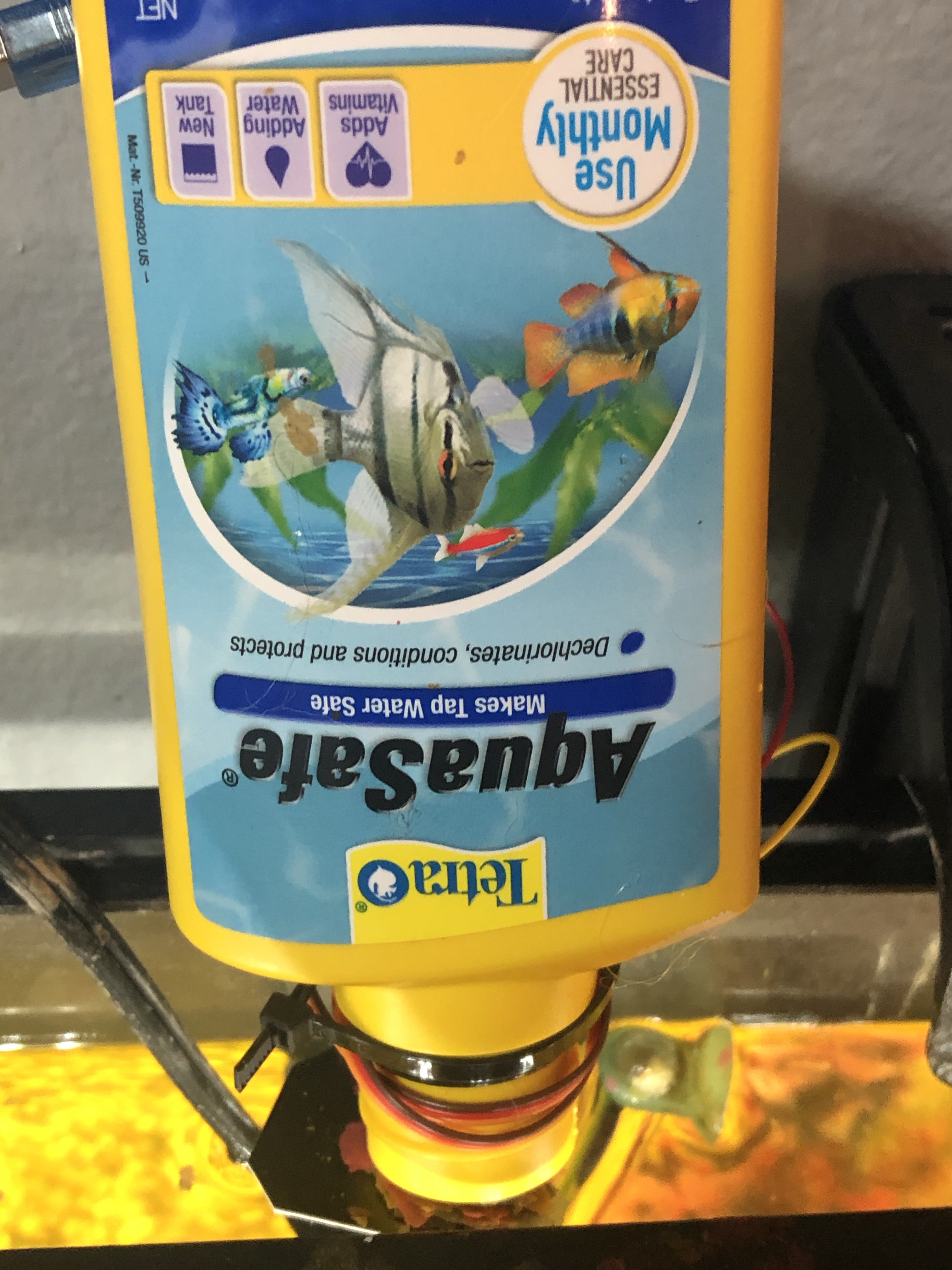
After realizing the electronics portion of the project was coming together quite easily, I realized I had to start thinking about the physical container the food would reside in, and how I’d deliver it. I had a bottle laying around that I cut the bottom out of for the food to reside in.
Now I had to think about how I would control the food from storage to delivery. For this, I decided to cut square of cardboard (from a JB Weld package of course) and attach it to the servo. Then, it was a quick ziptie to affix the servo-JBweld-stopper to the food storage container.
Then I just had to get that bad boy moving:
Working but…. I’ll kill my fish if they get that much.
We had a working JBweld-cardboard-servo control, but it was going to need adjustment. I decided it would be a good idea at this point to start testing not only the angle to set the servo, but the frequency, friction, and amount of times to move the thing for the proper amount of food to fall.
It was in testing that I discovered some physical bugs. Some people might have used a different material to simulate how the fish food would fall. Not me, I went and grabbed the flakes that were going to be used in a real-life simulation train like you fight was about all I learned in the Navy.
I’m glad I did, because those stupid flakes didn’t want to come out of my bottle after the first couple of times, they’d get stuck in the larger canister but wouldn’t fall out of the mouth. Not good. I thought about some possible solutions. Solution #1 was to hot glue a pizza flyer into a cone and stick it in there:
This was better but still not ideal. I needed something to disrupt the flakes and get them to fall. Ultimately I decided to hot glue a 3″ screw upside down against the JBweld-servo at the bottom so it would disrupt the entire food storage unit as it went back and forth.
Bingo
With that problem solved, I was able to tweak the code until I got the appropriate amount of food to fall on each run. Once satisfied with that, all that was really left was to put all the hardware together. Well I mean, there was that little “how will I power this thing” obstacle:
imagine knowing this little about electricity
Obviously that wasn’t going to work (lol) and servos require a bit more of a power draw than an LED. I remembered when I bought my house a few years ago the mortgage company gave me some small USB power banks. Perfect.
Thanks OnQ!
Now I could attach everything to a single contained unit! I used a plastic container that some screws came in, threw everything in there and zip tied it closed – now this is engineering!
“it looks like an IED” -my wife
With all that done, all that was left to do was send the device on its maiden voyage:
my wife’s surprise at this device actually working says it all
And that’s it! Here’s the final display:
The profile actually doesn’t look that bad, and it’s self contained.
Remember we talked about the timer? The timer situation isn’t ideal. I ran through some other options but for now I’m just going to run a delay() method for 24 hours. It’ll be off more and more every day because the processor can’t keep time like that, but I’m hoping it will run a week or so before it’s off by more than an hour. The other concern here is I have no idea what the total potential energy of the OnQ financial swag charger is or how long it will power the device for….. I guess we’ll figure it out.
If you have any ideas or experience with this sort of thing, I’d be interested in hearing about what a more efficient way to power and run the timer might be. Ideally it would wake the device up every 24 hours, run the program, then sleep for another 24 hours.
Anyway, here’s the code:
#include <Servo.h>             //Servo library

Servo fish_opener;        //initialize a servo object for the connected servo

int angle = 0;
int times_to_run = 2;
int start;

void setup()
{
  fish_opener.attach(9);      // attach the signal pin of servo to pin9 of arduino

}

void loop()
{

  while(start <= times_to_run)
   {

    for(angle = 0; angle <= 45; angle += 6)    // command to move from 0 degrees to 45 degrees / increment of 6
    {
      fish_opener.write(angle);                 //command to rotate the servo to the specified angle
      delay(10);
    }

    delay(500);

    for(angle = 45; angle >=1; angle-=6)     // command to move from 45 degrees to 0 degrees / increment of 6
    {
      fish_opener.write(angle);              //command to rotate the servo to the specified angle
      delay(10);
    }

      delay(500);
      start += 1;
   }

  start = 0; //reset while loop variable

  delay(86400000); //24 hours

}
All in all it was a fun project. I really enjoy the hardware side of things and hadn’t put something together a little more than two years ago with my crypto miner.
Cheeky Bonus
When I decided I was going to make this into a blog post I airdropped all of my photos and videos from my iPhone to my MacBook pro.
fffffuuuuuuuuuuuuuuuu
HEIC isn’t a friendly web format and there was no way I was going to open up each file in preview and export them. A little known trick with these newer formats like HEIC and WEBP is you can simply rename the file extension to convert. However, there was also no way I was going to manually click each file and rename the extension so I used this handy 8 line Python script:
 import os,sys
 folder = '/Users/RFaile/Desktop/fishfeeder'
 for filename in os.listdir(folder):
        infilename = os.path.join(folder,filename)
        if not os.path.isfile(infilename): continue
        oldbase = os.path.splitext(filename)
        newname = infilename.replace('.HEIC', '.jpg')
        output = os.rename(infilename, newname)
*No, not really. It’s just that when you say “I have been hacked!” you’re handing off responsibility. People think these things “just happen” – hackers hack, right?
Wrong
In the present day, people use the word “hacked” as if they were being targeted by hackers, then getting their accounts broken into by some sort of voodoo computer magic. The reality is: this couldn’t be further from the truth.
This is *not* how someone got into your Facebook account 🤦♂️
There are many forms of hacking. In this post, we’re going to focus on modern day account security since this is where most people will tell you they get “hacked”. When I say account security, think Facebook, Twitter, Apple, Netflix, Instagram, Email, etc.
What is “hacking” ?
The early days of the internet were basically the wild west. As a result, account penetration was a much simpler process. Passwords could be guessed over and over by programs until it guessed the right one (computers can do this really fast) and direct p2p connections were extremely common as well since IPs were more exposed to the (relatively) few folks online. When I first started using the internet in the late 90s, it was a common practice to open a direct client-to-client connection with a stranger in IRC to share a file. You would never do that today, and modern communication platforms like discord abstract things in a way where you’d never actually know the IP of a person you were sharing a file with.
Nowadays, there isn’t a service with over 20 active users out there that doesn’t have rudimentary security in place like brute force protection. Your larger platforms with millions of users will have much more sophisticated protection. For example, if you live in Chicago and log into Facebook, then try and log in from Bangladesh 5 minutes later, the system is going to block that attempt. In short, it’s nearly impossible for someone who has never met you to hack you without you handing them the keys to do it.
So how does it happen, then?
Here are the most common ways an account gets compromised:
Clicking phishing links in emails or on websites which redirect to false pages reconstructed to look like a service you use: Facebook, Apple, Amazon, Chase banking, etc. You’ve clicked this link because it said in the email that you had an urgent notice that needed to be resolved, then you willingly entered your account information, which someone now has.
You have a ridiculously easy password. 123456, qwerty, password, hunter02, your name, your kid’s name, your pet… the list goes on. Don’t do it.
You use a universal password. A universal password means you use the same password or a variation of it for multiple accounts. This is literally the worst thing you can do. Why? Because if an entity legitimately gets hacked, like Equifax in 2017 for example, whoever gets that data is going to try to login to every other service they can with the account credentials they gained. Fun fact: Equifax got “hacked” because their database username was admin and the password was….. admin! Yes, really.
YOUPROVIDE answers to password security questions, sometimes freely. These are questions you often set up when creating an account: What is your birth date? What is your Mother’s Maiden Name? When is your anniversary? I can find out 90% of the answers to these questions just by being friends with the average person on Facebook. People that answer Facebook “quizzes”? *Shudders* 😬.
This brings us into what modern day hacking usually comes down to: social engineering. People trick you into revealing information that help them hack you. Whether it’s over a social media DM, a video game, or on the phone. Modern day hackers are experts at piecing together seemingly innocuous information… until it’s too late.
What can I do about it?
Here’s are some extremely easy ways to significantly reduce your odds of getting an account compromised:
Don’t click links in emails. If you get an account notice, log in directly through the organization’s portal and see what’s up. Reach out to the organization directly. If you get an email saying your Netflix account is frozen, try logging into Netflix at https://netflix.com – if you can login, the account obviously isn’t frozen.
Use long, strong, unguessable passwords. Zhwg(=B)wMNOd(m1l;1BHl/-O?Z:kVko#aMaclcd is an example of a strong password (230 bits) combining numbers, letters, case, and special characters. Length is one of the things that make a password tough to hash, but isn’t the only factor.
Even better is to get a password manager and let the password manager generate the passwords for you. The password manager will ensure the password is as difficult as can be for a machine to guess, while allowing you to one-click copy/paste it into the service in most cases.
Never ever use the same password in more than one place. Seriously, don’t do it. This includes if your password is just an alteration of the same thing. For example: packers01, packers1!!, Packers!! might as well be the same password.
Never store username/password credentials in your browser (when you log in to a site, this is the “save password” prompt that you see.) The first thing a “hacker” who gains control of your computer does is check your browser for usernames and passwords which can be viewed as plain text.
Set up two-factor Authentication…. everywhere. There aren’t any mainstream services that don’t offer this. Start with your emails (yes you should have more than one) as they’re the key to most account recoveries. If someone gains access to your email, they can reset your accounts in other places by sending a password recovery link to your email. Your email needs to be the hardest thing to get into. This is like the easiest thing to do, yet 90% of people with a Gmail account do not have 2FA set up. That number is staggering.
Don’t use text-message based 2FA. SIM cards can and do get compromised remotely. Someone can assume your SIM and have 2FA codes sent to them if they care enough. It has happened to people I work with. Instead, use an Authentication app like Google Authenticator or Authy. These apps generate tokens that change every 30 seconds that you’ll need to provide when logging into a 2FA-connected service.
So is it really impossible to get “hacked” then?
No. True security breaches happen every single day. Usually someone discovers and exploits a security vulnerability in a service and figures out a way to query a database or gain access to an administrator’s account. I talked about Equifax a bit, but this has happened to other large organizations as well.
What then happens is now someone has a list of username/email and password combinations used for that service. They then use these lists and throw them at other services until they work, banking on the fact that people can (and do) use the same credentials across multiple services. These attacks are known as credential stuffing. Again, using unique passwords for every service greatly mitigates the impact this has on you.
“Have I been Pwned” is a great site for checking if you have an account that’s been compromised in a data breach somewhere: https://haveibeenpwned.com/
Is it all worth it?
In a word: yes.
Think of how much you value everything on your computer and on web services: photos of your loved ones, correspondence, financial information, your writing. Your computer and web accounts are access points to things you own, things that are yours. The small inconveniences here and there are big inconveniences for hackers. Do you know what more inconvenient than entering a 2FA code? Trying to explain to Facebook that it’s your profile that someone else is using or getting your money back when someone gets into your bank or credit services.
In Summary
These are the basics. As you’ve learned, simply enabling two-factor authentication on your email will make you a harder target than 90% of the 1.5 billion people who have a Gmail account.
Use Two Factor Authentication. Never re-use passwords. Get a password manager.
Questions? More tips? Let me know in the comments 👇
I’ve been at Automattic about two years now, and it’s been long past due for me to upgrade my company-issued MacBook Pro. When I first started at Automattic, I opted for the 13″ fully upgraded model. I didn’t want a big and bulky 15″ and I definitely didn’t want the touch bar. I really like tactile keys and the difference in power wasn’t going to be that significant. Plus, it was less bulky.
My 13″ MBP ended up serving me well in my first two years. Here is a top-shot in all its glory in the machine’s last day of service:
Farewell, good buddy 👋
I was due for a replacement in the middle of this year (2019) but decided to wait because there were rumors of Apple releasing a 16″ model which had numerous improvements over the existing 15″ models. For starters, it was bringing back the ESC key (less touch bar = good!) While I wish they would offer a tactile key option, this was better than nothing. Furthermore, they brought back the scissor keyboard! This one actually feels less mushy than the older ones feel, especially after you’ve gotten used to the butterfly mechanism of the 2016-2018 models, but it’s a short adjustment period. Lastly, I found that while I enjoyed the portability and power-in-a-small-package of my 13″ little beast, I was ultimately less productive due to lack of screen real estate.
All of these factors led me to wait for the possible release of the 16″ MacBook Pro. My patience, it seems, paid off as Apple announced the 16″ model on November 15th. I made my order that day and it arrived to my door about a week later.
I couldn’t find a case at first since it was so new. Even though the chassis was supposedly the same size, I had read multiple reports that cases from the 15″ would not fit on the 16″. Eventually, to my satisfaction, I ended up stumbling across this heavy duty case from i-Blason which is perfect for me because I have a tendency to drop expensive things.
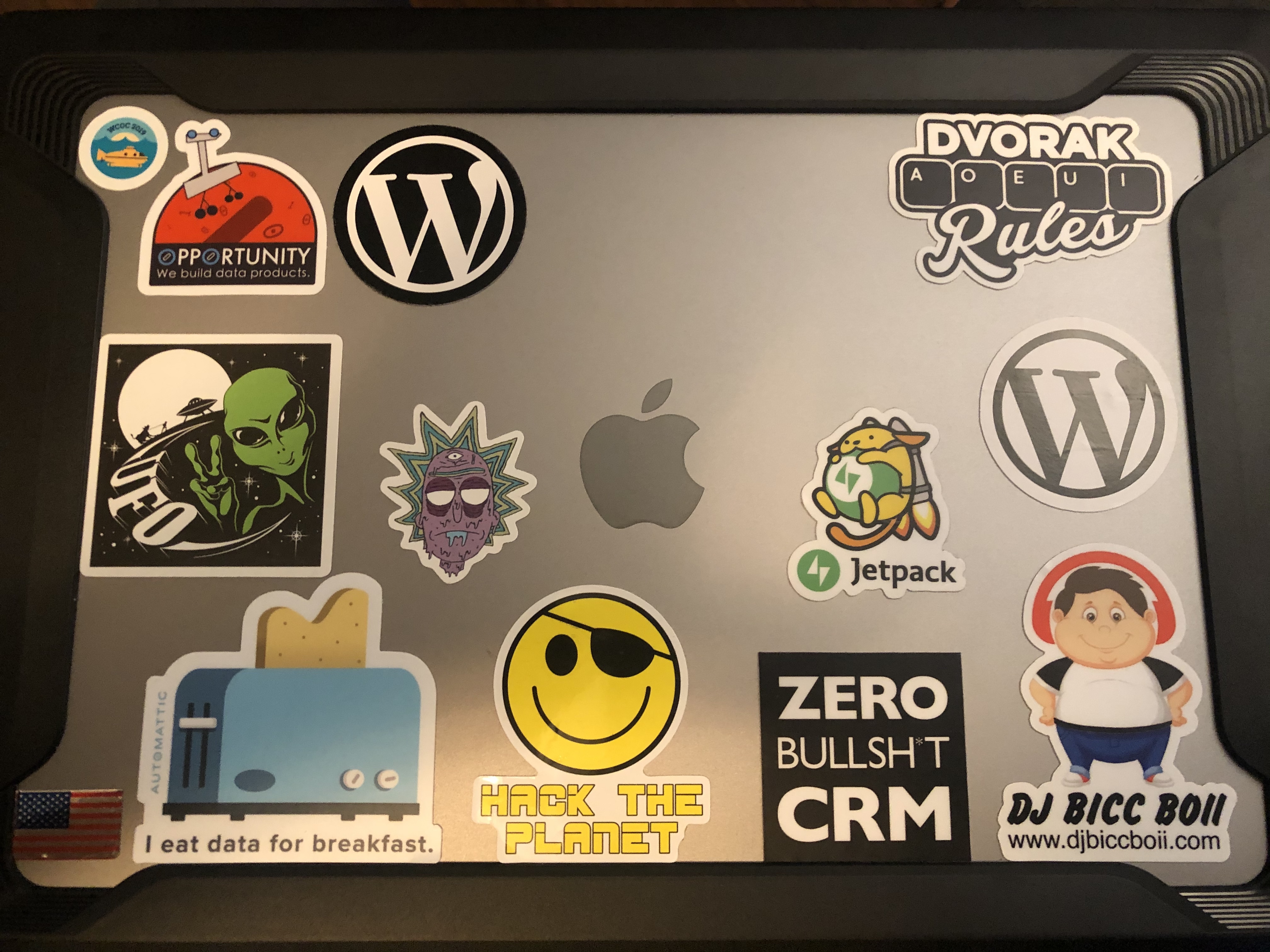
I still have room for a couple more stickers😄
The specs are:
Operating System: MacOS Catalina
Processor: 2.4 GHz 8-Core Intel Core i9
Memory: 32GB 2667 Mhz DDR4
Graphics: AMD Radeon Pro 5500M
Storage: 1TB SSD
All in all, this thing is a beast and I’m really happy to have it. If I dislike two things about it, it’s the bulkiness of it and the touch bar. God, I hate the touch bar. I’ve hacked it a little to remove anything useful unless I touch the function key. Otherwise, I’m constantly hitting it by mistake starting up programs or changing the display brightness or some other arbitrary change within the software I’m running I had no intention of making. It makes me really happy that I opted for the last MacBook Pro without a touch bar the last go around.
Other than that, this thing has breezed through everything I’ve thrown at it. An 8 core i9 with turbo boost up to 5Ghz is just nuts. I can’t even get the fans to spin in the performance of daily tasks. I have to really try. I stand firmly behind the statement that Apple makes the best Laptops, Tablets, and Phones at the time of this post. I still think Microsoft has them beat in desktop computing.
Lastly, and perhaps most important: migration assistant is a dream. If you haven’t used it, it basically takes your entire operating system and puts it on your new computer. It’s almost unreal how good it is. Turn on your computer, see how you have files laid out, configurations made just so and everything just the way you want it? Migration assistant puts that into a new machine for you. It’s very altered carbon-esque in the way it makes you feel like your hardware is just a shell for the operating system and the accompanying files, folders, and software – which is eternal. Seriously, if there’s one thing I would do if I worked at Microsoft is figure out a way to make a migration-like tool that’s even half as good as migration assistant is. Your software comes over with the same configuration, your files come over, the terminal is set up on the same git branch I left off on, I didn’t even have to log back into my Gmail because my browser and cookies came over. That’s how good it is.
I mention this a lot, but it’s no secret that the Windows command-line experience has been lackluster for the past decade or two. It’s quite apparent that Microsoft is well-aware of this, and we’ve seen improvements with Microsoft Powershell (CMD prompt is straight doo-doo 💩) but it isn’t perfect.
I’m going to sound like a Microsoft fan-boy, but they’ve been seriously impressing me lately. The VSCode editor is best-in-show (seriously, who isn’t using it as their code editor in 2019) and everything appears to be moving to a more open source environment. What I appreciate most here from Windows is that, instead of try and re-create their entire OS structure to match a UNIX based system, they simply…. give you the UNIX based system.
Enter WSL
Windows Subsystem for Linux (WSL) is a compatibility layer for running Linux binary executables natively on Windows 10 and Windows Server 2019. In lay terms, you can pull up a lightweight, fully functional Linux terminal right in your desktop without running a virtual machine. Yes, really.
1 Technically it’s a lightweight VM but it feels so different.
Why is this important?
While more and more software developed is cross-platform, the actual development of most non-Windows software (think .Net, C#/++) is done in UNIX environments (Linux/MacOS). Don’t believe me? Check out the Stack Overflow Developer Surveys for the past two years (2019 and 2018) – more than half are using a Linux-based system or MacOS.
But that’s just a survey. In practice, even some of our products at Automattic don’t compile on Windows. Calypso, for example, The JavaScript and API powered WordPress.com platform will not compile in a Windows environment… at least, I’m not aware of anyone that has a working dev environment in Windows, Automattician or open-source contributor alike.
Beyond that, with a working Linux environment that feels natural, we can grab all of our favorite software packages and set up environments with common UNIX-like commands without having to head to stack overflow (or this site 😁) every time we want to set an alias.
So how do you get started?
Craig Loewen over at Microsoft has put together some really excellent guides to getting started over at the official docs in the Microsoft Devblogs, and it really feels like I’d be doing him (and you) a disservice by not pointing you there. Here are some of my favorites:
In general though, head to the Microsoft store on your Windows machine and search “Linux”. There’s just about every distro in there, from Debian to Kali. I prefer Ubuntu, so that’s what I use.
One that’s downloaded, simply launch the Terminal and you’re good to go.
⚠ At the time of this article, you can’t directly modify files in WSL from Windows Explorer. [Edit: Craig mentions you can actually modify your Linux files directly from the File Explorer in Windows Version 1903 and Higher!] 🎉
Modification of Linux files through Explorer
So how do you interact/program with Software packages?
If you have WSL open, all you need to do is open VSCode on your windows machine and it will prompt you to install the Remote – WSL extension.
Then, simply type code . in your Linux terminal like you normally would, and it’ll launch your directory in VSCode…. Magic!
It’s not perfect
Yet. I’m hoping to see improvements as Microsoft gets closer and closer to releasing the new Windows Terminal (have you seen that commercial? huge kudos to Kayla & her team over at Microsoft 🔥) but at the time of this article I’m not able to set up a Docker container on it, and a few other caveats as well. For the most part though, I’m loving the path Microsoft is on and will continue to cheer them on as they do great things.