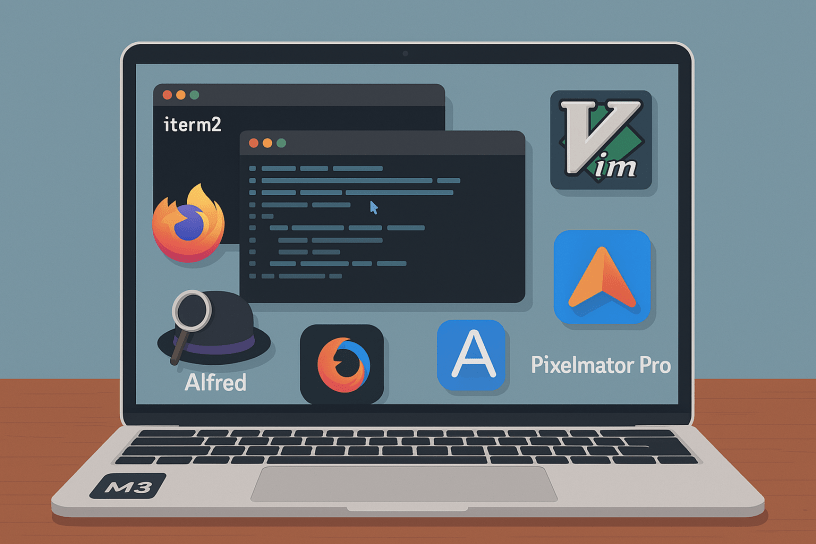
One of the challenges of working remotely is that you lose the benefit of “over-the-shoulder” learning. You don’t get to see what tools your coworkers are using or pick up on small productivity hacks just by being near them. So, I wanted to write this post to share some of the stack and software I use every day – my daily drivers – in hopes that it might help someone else out there level up their workflow or solicit feedback on what you are using and level up mine 🙂
Basic Stack
I use a 16″ Macbook Pro with an M3 chip (48G RAM/1TB SSD) as my primary work machine. I find Macs to be unparalleled in laptop user experience. The keyboard is excellent, the trackpad second to none, the display is great, and the fingerprint reader integrating with everything is an awesome bonus.
I used to be a guy that had to have a “command center” – multiple monitors, a fancy mechanical keyboard, an expensive mouse, and everything arranged just so. But I found that I lost a little productivity if I was at a meetup, traveling, in a data center, or really doing anything except being in my command center. I just accepted this – I’m less productive when I’m not at home.

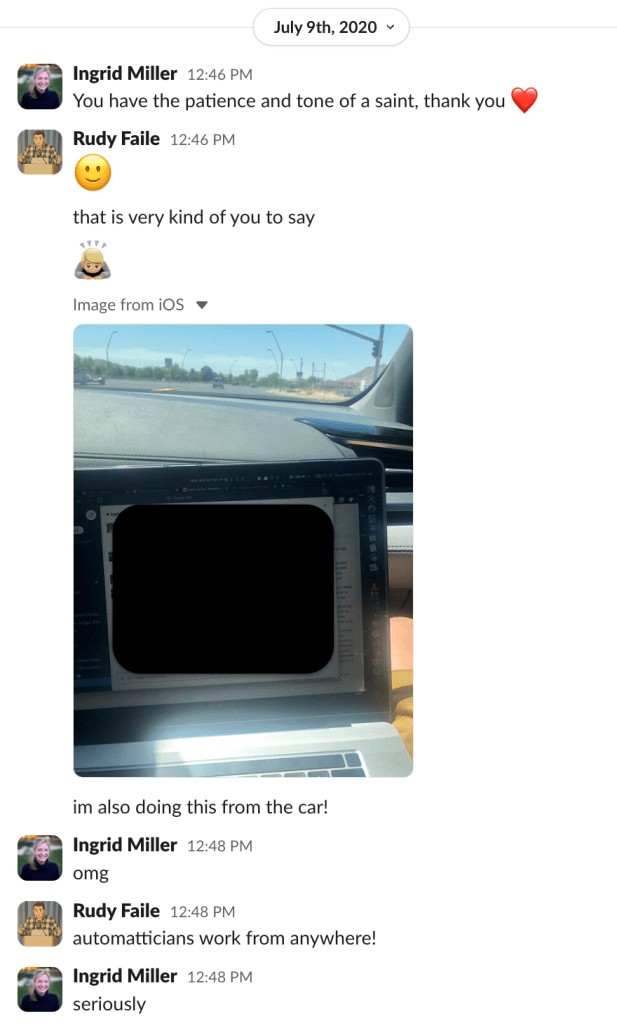
Then I talked to a colleague, Demitrious Kelly one late night, and he was telling me about how he only uses his MacBook because “it’s the tool I always have”. This statement caught me completely off guard, because I expected someone like him to have a crazy setup to produce the kind of work he does – tiene mucho talento. But he challenged me to try using only the Mac.
That was about six years ago, and I’ve exclusively used my MacBook for work since then with nothing else, no peripherals. Since then, it doesn’t matter if I’m at home, on a plane, at a conference, or in a car – my output is the same. That simple statement revolutionized the way I work:
I use Firefox as my preferred browser because it’s open source and Google has enough of my data without including everything from my browser. Mozilla changed the longstanding “Copy Link Address” hotkey from “A” to “L” in Firefox 88 which really, really disrupted my workflow, so I wrote an extension to change it back which I can’t live without: https://addons.mozilla.org/en-US/firefox/addon/link-copy/. In addition to this extension, I use the Alfred Browser Integration (more on that later) and Proxy SwitchyOmega which is a tool that allows you to create proxy rules based on hostname or IP which is critical for systems tasks like interacting with servers via IPMI… and that’s it for browser extensions.
I use iterm2 as my terminal emulator because it kicks serious ass and is easily one of the best free pieces of software I’ve ever used. Some configurations I like for using it include setting the terminal backscroll to 50,000 lines (from 1,000) profiles > {profile} > terminal, a hotkey to send iterm2 to the back of all windows or bring it to the front (I use control + z), and this tab style arrangement for windows:

I use ctrl+tab to cycle through the tabs or option + {number} to jump to a specific window. You can do all kinds of other cool stuff with iterm2 as well, broadcast commands to all windows, anything you can imagine really. It’s really well designed software and I highly recommend donating to the developers for the incredible gift they have provided nerds everywhere  .
.
I use zsh as my shell since it’s the default in MacOS (though I write all my scripts in bash) and some small customization via oh-my-zsh but really only for visual stuff like easier to read text and git information on my prompt:

In general, I try REALLY HARD to try and stick with the defaults wherever possible. This is because I work on servers and docker containers and kuberenetes pods and other remote hosts where the state and configuration of said host machine is often unknown and may not even be modifiable at all. So, much like the laptop theory, I try to learn and get proficient with the tools I will always have. I don’t need the fancy stuff from oh-my-zsh to work on a remote machine, but I might suffer if I spent time getting used to fzf for file browsing, for example.
This of course brings me to my default editor. I use vim:

Vim is pretty much available everywhere by default and it always works the same – it’s the tool I always have. This is good. On my Macbook I have shellcheck integrated, but it’s not really a requirement — and that’s it for plugins. For vim preferences, I’ll use the defaults in most cases or some very basic .vimrc customization if it’s a long term host like the servers in my homelab, but again, I try not to do too many things that will make me useless or less productive if I don’t have them. Here’s a link to my very simple/basic dotfiles.
Software
One recurring theme about the software I use – I try to avoid SaaS at all costs. In general, if I can’t pay for it once and have it forever – options to pay to upgrade major versions are okay if the software is good enough – but paying monthly or it stops working? no. If I can’t find this or something that doesn’t need my specific need, I usually write a small program that does it. For example:
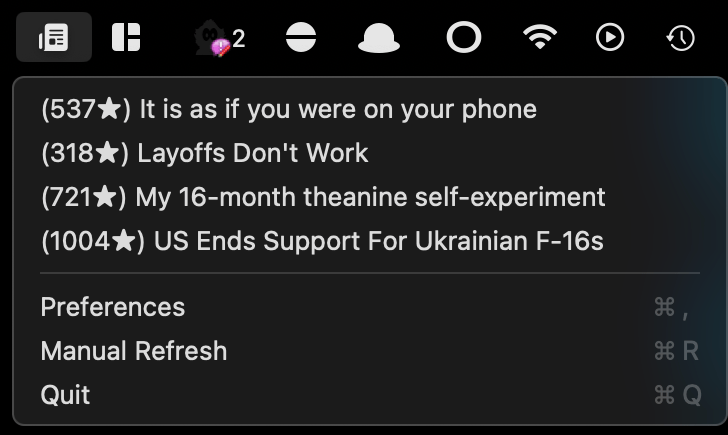
HackerNewsIcon – A macOS menu bar app I wrote that monitors Hacker News for top posts. Displays trending articles and notifies you when a new post reaches your set score threshold:
My colleague Chris Laffin somehow found this gem of a text editor app called TextMate which is another incredible piece of free software probably only second to iterm2 in the value it provides for its price. He put me and a few other systems folks onto it and we’ve been using it ever since. Native, performant, awesome. I use this like a scratch pad to hold temporary information or perform work that works better in a visual environment where it’s a better buffer than vim – and there are usually plenty of use cases for this: log files, for example.
Alfred – can’t live without this one, and I know most of my fellow Automatticians already use this or know about it. Alfred is basically my go-to for everything. I use it as a spotlight replacement and basically as the interface to my machine in parallel with my terminal. I can press command+space and instantly open any file on my system, run a translation, run something through an LLM (locally via ollama or remote), search anything in MGS/Slack/Matticspace, lock my machine… it’s basically how I use my computer. I also have hundreds of snippets for anything I have to type more than a few times including long terminal commands, common troubleshooting instructions, hell, even typing wp; expands to WordPress.com . As mentioned previously, I also have the browser integration installed so I can search any of my open browser tabs through this interface. As anyone who has went down a troubleshooting rabbit hole knows, this is a game-changer. Need to go back to that collins tab you were looking at 20 tabs ago? command + space then tab collins — game. changer.

Adium – I use this as a WordPress.com Jabber client to monitor p2s and get an instant notification when a new post, comment, etc is propagated. I get a lot of comments on how fast I reply or react to posts. This is my secret sauce 🙂

Magnet – I use this as a window manager. In general my screen is chaotic and and not all organized, but I have the magnet keyboard shortcuts memorized to quickly arrange something side by side or in quadrants if needed. I think MacOS might do window management by default now, but I’m used to Magnet and it was a one time purchase / not SaaS so I reap the benefit of being used to it and owning it forever 🙂
Pixelmator Pro – It’s like photoshop except maybe better and it was a one time purchase 🙂 — totally worth it. I use it for all my image generation needs. Well, almost all…..
ffmpeg – I mean this thing does everything. Video conversion, image conversion, video to gif, all kinds of other weird stuff. You may not know how to do it, but ffmpeg supports it
Amphetamine – this thing is cool. It keeps your mac display awake for however long you set it. I love software like this. It does one thing, does it well and does it reliably. I don’t want to modify my mac settings to do stuff, like keep the mac from sleeping when I’m running a time machine backup, so I set Amphetamine to 6 hours and lock my machine. Easy. Done. Never thought about it twice.
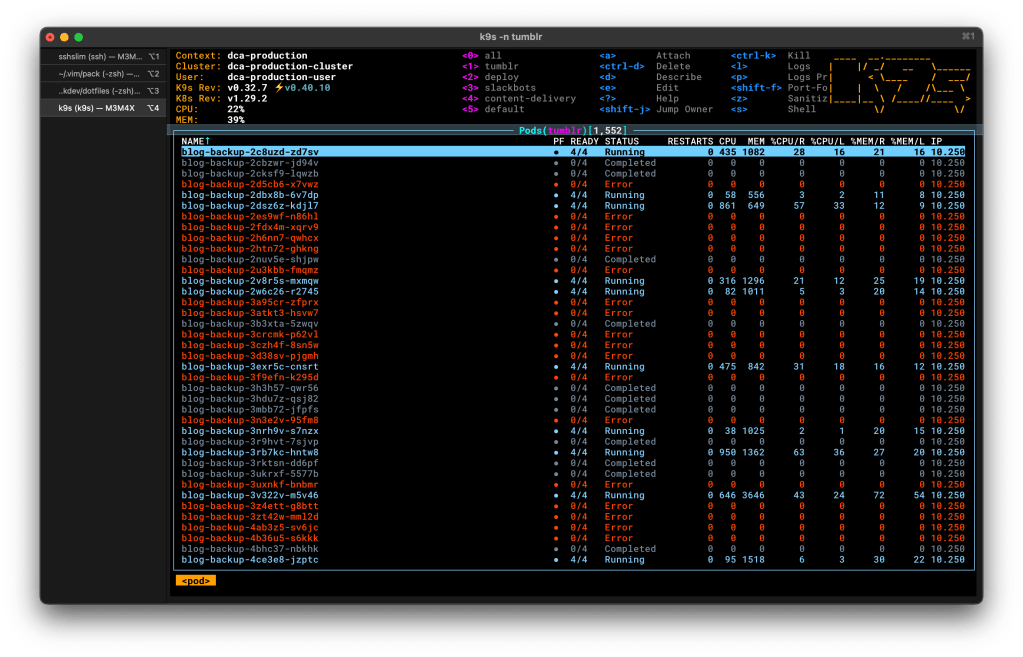
k9s – k9s is a TUI interface for managing a kubernetes cluster. This thing is invaluable and every day I pay homage to my colleague Chad or teaching me about it. I used to use Lens, but then they wanted money so I converted and haven’t looked back:
Wireshark – The industry standard tool for analyzing packets. Use it all the time in debugging.
ntfy.sh – This thing is a pretty cool notification app. I use it sometimes to send non-sensitive information to my phone. do thing; when done curl -d "$HOSTNAME thing is done" ntfy.sh/rudy_notification and I get a notification on my phone when thing is done. Cool.
Textual 7 – I use textual as do most other folks in systems at Automattic to interface with IRC. It’s a native app and I’ve tried lots of others and this thing seems to be the best. Per channel notifications based on string matches is the number one thing that makes this thing useful to me. The interface is also compact and easy to use.
Some other things obviously should go without saying – like yes I’m using Slack as my ephemeral communication tool and Homebrew as my Mac package manager. Yes I use Spotify to listen to music (one of the only app-based subscriptions I have!!!).
And that’s pretty much it. One of the first concepts taught when I was learning how to program computers was KISS, or, Keep it Simple, Stupid! and I’ve tried to carry this advice throughout my career and life when it comes to tech. Abstraction kills, simplicity scales, always apply first principles to every problem.
I would love to field questions about anything I’ve written here or hear from you about the software you can’t live without. Feel free to DM me or, even better, leave a comment here to discuss so all may benefit 🙂
This post was not written with the assistance of AI 🙂
 Rudy Faile